Reviving a blog needs a project worth writing about, and this one turned out to be a good one: get a full, graphical Java IDE running inside a properly locked-down Docker container, with its window showing up on my Mac desktop like any other app. It sounds like a niche party trick. It’s actually a nice case study in why “just Dockerize the GUI app” is more interesting on macOS than it looks, and in what changes when you stop optimizing for “it launched once” and start optimizing for “I’d trust this running every day.”
The short version of where this ended up: a non-root Ubuntu container running Apache NetBeans on Azul Zulu JDK, displaying through XQuartz via a nested Xephyr X server, authenticated with a scoped cookie instead of throwing the X server open to the world. The rest of this post is the working setup, end to end, plus the reasoning behind the choices that aren’t obvious from the commands alone.
Why bother running an IDE in Docker at all?
A few reasons converged:
- Reproducibility. The exact JDK version and NetBeans version are pinned in the image, not scattered across whatever I happened to install on the host over the years.
- Isolation. An IDE that runs Maven and Gradle builds is, functionally, a program that executes arbitrary code pulled from the internet on your behalf. Keeping that inside a container with dropped capabilities and no ability to gain new privileges is a meaningfully smaller blast radius than running it directly on the host.
- A clean host. No JDK installers, no IDE installer, nothing touching
/usr/localon the Mac itself. Delete the container, delete the image, it’s like it was never there.
The catch is that macOS doesn’t have a native X11 server, and Docker Desktop on a Mac isn’t running containers directly on the host the way it does on Linux — it’s running them inside a lightweight Linux VM. So “just forward the display” involves a few more moving parts than it would on a Linux workstation.
The quick version, first
Before landing on the setup below, I got NetBeans’s window to appear on screen with a much rougher pass: install a JDK and NetBeans as .deb packages straight into an Ubuntu container, mount the host’s X11 socket directly, and open the X server to any local process with xhost +. It worked, in the sense that a window appeared. It’s not something I’d want to reuse — the shortcuts it takes are exactly the kind that are fine for a five-minute proof of concept and not fine for a container you’ll run regularly.1 The setup below fixes those shortcuts one at a time.
The setup that actually works
The pieces, at a glance:
- Ubuntu 26.04 base image, running as your own host UID, GID, and username — not root, not a generic container user.
- Azul Zulu JDK 21, installed from Azul’s own APT repository so it’s a real package rather than a hand-downloaded
.deb. - Apache NetBeans 31, pulled from the official Apache binary archive.
- Xephyr, a nested X server that runs inside the container, plus IceWM as a minimal window manager for it. Rather than reaching directly into the host’s X11 socket, the container gets its own private, disposable display.
- A scoped X11 auth cookie (
.Xauthority) instead of a blanketxhost +, so the display isn’t open to every process on the machine. --cap-drop=ALLand--security-opt=no-new-privilegeson the run command, so the container can’t do anything it wasn’t explicitly given.
If your Mac is Intel rather than Apple Silicon, the only thing that changes below is a single build argument (ZULU_JDK_ARCH), called out where it matters.
The Dockerfile
FROM ubuntu:26.04

RUN apt-get update && apt-get install -y \
    wget \
    unzip \
    gnupg \
    ca-certificates \
    curl \
    xserver-xephyr \
    icewm \
    && rm -rf /var/lib/apt/lists/*

# --- Azul Zulu JDK (from Azul's APT repo) ---
ARG ZULU_JDK_VERSION=21
ARG ZULU_JDK_ARCH=amd64
RUN curl -s https://repos.azul.com/azul-repo.key \
      | gpg --dearmor -o /usr/share/keyrings/azul.gpg \
    && chmod 644 /usr/share/keyrings/azul.gpg \
    && echo "deb [signed-by=/usr/share/keyrings/azul.gpg] https://repos.azul.com/zulu/deb stable main" \
      > /etc/apt/sources.list.d/zulu.list \
    && apt-get update \
    && apt-get install -y zulu${ZULU_JDK_VERSION}-jdk \
    && rm -rf /var/lib/apt/lists/*

ENV JAVA_HOME=/usr/lib/jvm/zulu${ZULU_JDK_VERSION}-ca-${ZULU_JDK_ARCH}
ENV PATH="$JAVA_HOME/bin:$PATH"

# --- Apache NetBeans (no apt repo; install from official binary archive) ---
ARG NETBEANS_VERSION=31
RUN wget -q https://downloads.apache.org/netbeans/netbeans/${NETBEANS_VERSION}/netbeans-${NETBEANS_VERSION}-bin.zip \
      -O /tmp/netbeans.zip \
    && unzip -q /tmp/netbeans.zip -d /opt \
    && rm /tmp/netbeans.zip
ENV PATH="/opt/netbeans/bin:$PATH"

COPY start-netbeans.sh /usr/local/bin/start-netbeans.sh
RUN chmod 755 /usr/local/bin/start-netbeans.sh

ARG USER_UID=1000
ARG USER_GID=1000
ARG USER_NAME=devuser
RUN (getent group $USER_GID || groupadd -g $USER_GID $USER_NAME) \
    && useradd -m -u $USER_UID -g $USER_GID -s /bin/bash $USER_NAME

USER $USER_NAME
The JDK and NetBeans versions are both build arguments (ZULU_JDK_VERSION, NETBEANS_VERSION) with sane defaults, so bumping either later doesn’t mean editing the Dockerfile — just passing a different --build-arg.
Building the image
Bake your host UID, GID, and username into the image so file ownership on the shared folder matches your Mac account, and set the architecture flag correctly for your hardware:
docker build \
  --build-arg USER_UID=$(id -u) \
  --build-arg USER_GID=$(id -g) \
  --build-arg USER_NAME=$(id -un) \
  --build-arg ZULU_JDK_ARCH=$(uname -m | sed 's/x86_64/amd64/') \
  -t netbeans-xwindows-mac:1.0.0 .
ZULU_JDK_ARCH resolves to arm64 on Apple Silicon and amd64 on Intel automatically via that uname -m substitution.
To pin a different Java or NetBeans version at build time, add the corresponding arguments — no Dockerfile edits required:
docker build \
  --build-arg USER_UID=$(id -u) \
  --build-arg USER_GID=$(id -g) \
  --build-arg USER_NAME=$(id -un) \
  --build-arg ZULU_JDK_ARCH=$(uname -m | sed 's/x86_64/amd64/') \
  --build-arg ZULU_JDK_VERSION=17 \
  --build-arg NETBEANS_VERSION=22 \
  -t netbeans-xwindows-mac:1.0.0 .
ZULU_JDK_ARCH—amd64for Intel/x86_64,arm64for Apple Silicon.ZULU_JDK_VERSION— any major version Azul publishes to their APT repo (8,11,17,21, …).NETBEANS_VERSION— any version published underdownloads.apache.org/netbeans/netbeans/.
If you change ZULU_JDK_VERSION, double-check that JAVA_HOME still resolves correctly after the build — it’s derived from the version number, so an unusual version string could need a manual override.
Host setup on macOS
This part runs once per machine (steps 1–2) and once per XQuartz session (steps 3–4).
1. Install XQuartz. It isn’t bundled with macOS. Get it from xquartz.org, or brew install --cask xquartz. Log out and back in (or reboot) once after the first install so macOS registers it as the default X11 handler.
2. Allow network client connections. By default XQuartz refuses TCP connections, but the container needs TCP since it reaches the Mac via host.docker.internal rather than a local Unix socket:
- Open XQuartz (
open -a XQuartz) - XQuartz → Settings… → Security
- Check “Allow connections from network clients”
- Fully quit XQuartz (⌘Q, not just closing the window) and reopen it — this only takes effect after a restart.
3. Start XQuartz before generating the auth cookie. XQuartz has to already be running, or there’s no active authentication entry to read from — the cookie file ends up blank or missing, and the container fails to connect:
open -a XQuartz
until pgrep -x XQuartz >/dev/null 2>&1; do sleep 1; done
echo "XQuartz is running"
If it was already running, this finishes immediately.
4. Generate a scoped X11 auth cookie. This is the step that’s easy to get wrong, and worth explaining rather than just running. The obvious approach — grant access under the hostname host.docker.internal — doesn’t work, because that hostname doesn’t resolve on the Mac itself; XQuartz only knows its own local hostname (something like macbookpro.local:0). A cookie scoped to a hostname that XQuartz never sees itself as simply never matches, and the container fails with Authorization required, but no authorization protocol specified.
The fix is a cookie scoped with a wildcard family (FamilyWild) instead of a specific hostname, so it matches the connection regardless of what hostname or address the client used:
# Confirm your local DISPLAY (XQuartz sets this once running)
echo $DISPLAY

# XQuartz's DISPLAY is usually a launchd Unix-socket path on macOS.
# Its TCP display is :0, and the active cookie lives in ~/.serverauth.*
AUTH_FILE=$(find "$HOME" -maxdepth 1 -name '.serverauth.*' -type f \
  -exec stat -f '%m %N' {} \; | sort -nr | head -1 | cut -d' ' -f2-)
test -n "$AUTH_FILE" || { echo "No XQuartz auth file found" >&2; exit 1; }

# Generate a wildcard-family cookie from the active XQuartz auth entry
rm -f /tmp/.docker.xauth
xauth -f "$AUTH_FILE" nlist :0 \
  | sed -e 's/^..../ffff/' \
  | xauth -f /tmp/.docker.xauth nmerge -

# Verify
xauth -f /tmp/.docker.xauth list
ffff is the FamilyWild marker. It’s a narrower fix than xhost + — it authenticates a specific cookie for the connection the container will make, rather than opening the display to any local process.
Running the container
Create the shared project folder once:
mkdir -p "$HOME/Documents/NetbeansProjects"
Then run the container. The destination path has to be spelled out explicitly rather than as ~/netbeans — Docker doesn’t expand ~ inside a container path:
docker container run --rm \
  -e DISPLAY=host.docker.internal:0 \
  -e XAUTHORITY=/tmp/.docker.xauth \
  -v /tmp/.docker.xauth:/tmp/.docker.xauth:ro \
  -v "$HOME/Documents/NetbeansProjects:/home/$(id -un)/NetBeansProjects" \
  --ipc=host \
  --user $(id -u):$(id -g) \
  --cap-drop=ALL \
  --security-opt=no-new-privileges \
  -it netbeans-xwindows-mac:1.0.0 /usr/local/bin/start-netbeans.sh
Anything saved under /home/$(id -un)/NetBeansProjects inside the container shows up immediately at $HOME/Documents/NetbeansProjects on the Mac, and vice versa — it’s a live shared folder, not a copy. Worth keeping actual project source there and letting build output and IDE settings live elsewhere in the container, since anything written to that folder is now effectively on the host too.
One deliberate omission: this command does not mount the host’s /tmp/.X11-unix. The container manages its own internal copy of that path for the nested Xephyr display, and mounting the host’s version over it causes Xephyr to fight with the host over who owns that socket.
Starting the nested display, window manager, and IDE
start-netbeans.sh is what the container actually runs, and it does four things in order: start Xephyr on a nested display, wait for its socket to exist, start IceWM on that same nested display, then launch NetBeans on it too — cleaning up the background processes when NetBeans exits.
#!/usr/bin/env bash
set -eu

export DISPLAY="${HOST_DISPLAY:-host.docker.internal:0}"
NESTED_DISPLAY="${NESTED_DISPLAY:-:1}"

Xephyr -br -ac -screen "${SCREEN_SIZE:-2560x1440}" "$NESTED_DISPLAY" &
xephyr_pid=$!
icewm_pid=

cleanup() {
    kill "$xephyr_pid" ${icewm_pid:+"$icewm_pid"} 2>/dev/null || true
}
trap cleanup EXIT INT TERM

until [ -S "/tmp/.X11-unix/X${NESTED_DISPLAY#:}" ]; do
    kill -0 "$xephyr_pid" 2>/dev/null || exit 1
    sleep 0.1
done

DISPLAY="$NESTED_DISPLAY" icewm &
icewm_pid=$!

DISPLAY="$NESTED_DISPLAY" exec netbeans
Two environment variables are worth knowing about:
SCREEN_SIZEoverrides the default2560x1440(e.g.-e SCREEN_SIZE=1920x1080).HOST_DISPLAYoverrides the defaulthost.docker.internal:0.
You may see _XSERVTransmkdir: Owner of /tmp/.X11-unix should be set to root and Xephyr unable to use SHM XImages in the output. Both are non-fatal warnings that come with the territory of running non-root — safe to ignore as long as Xephyr and IceWM actually start.
It runs
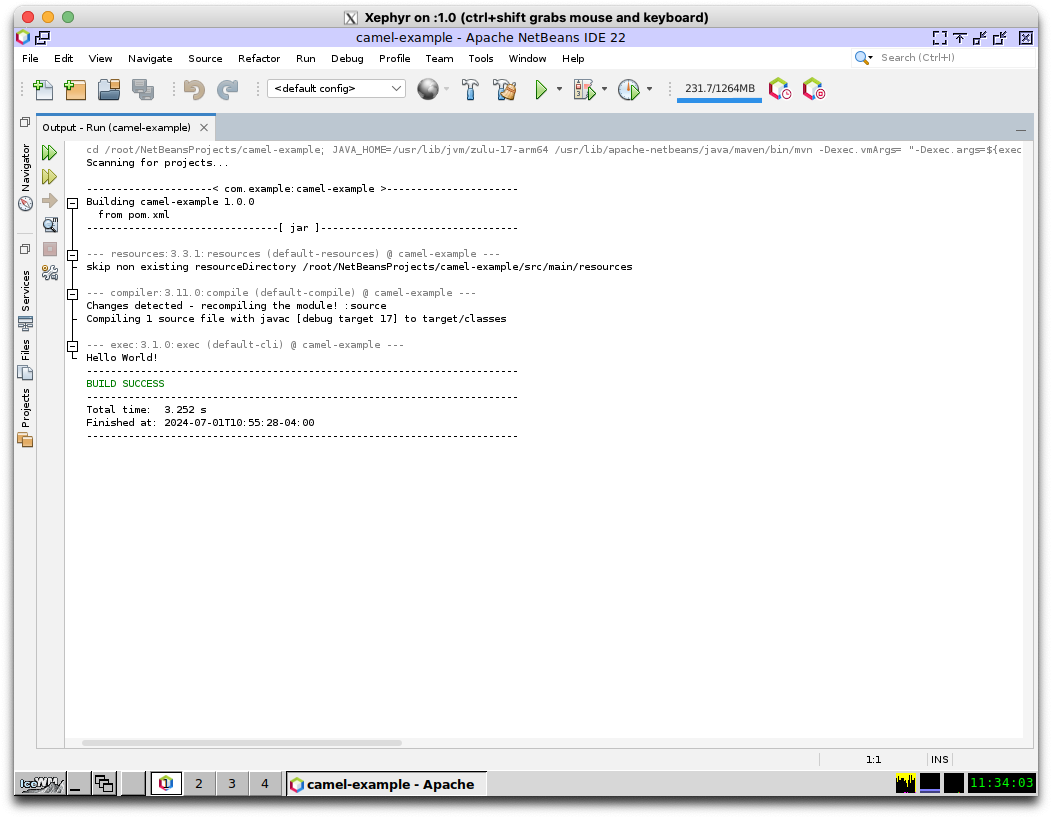
Here’s NetBeans, inside Xephyr, inside the container, building and running a sample project:
And the IDE window itself on an earlier pass through this setup, before a project was loaded:
(Those two screenshots are from an earlier run against NetBeans 22, back when that was the version I had pinned — the process is identical with the current default of NetBeans 31.)
If NetBeans can’t find Java
If you see Cannot find java. Please use the --jdkhome switch, the JAVA_HOME baked into the image doesn’t match where Zulu actually installed for your architecture. Check it:
ls /usr/lib/jvm/
echo $JAVA_HOME
If they don’t line up, either fix the Dockerfile’s ENV JAVA_HOME line for your architecture and rebuild, or pass it explicitly as a one-off:
netbeans --jdkhome $(dirname $(dirname $(readlink -f $(which java))))
Closing thoughts
None of the individual pieces here are exotic — Xephyr, IceWM, and X11 cookies have all been around for decades. What made this satisfying was the gap between “a window appears” and “I’d actually leave this running”: dropping capabilities, scoping the auth cookie instead of opening the display wide, and not letting the container touch anything on the host except one folder it’s supposed to. If you’re chasing something similar for a different IDE or GUI tool, most of this setup should transfer directly — swap out the NetBeans-specific download step and the rest of the scaffolding (non-root user, Xephyr, IceWM, the cookie dance) stays the same.
Source Code
The full project source — Dockerfile, start-netbeans.sh, and helper scripts — is on GitHub at jyeary/netbeans-xwindows-docker-mac.
-
The rough first pass looked roughly like this:
xhost +SI:localuser:$(id -un)to grant access, then a container with the host’s/tmp/.X11-unixmounted directly (-v /tmp/.X11-unix:/tmp/.X11-unix:rw), a hand-downloaded Zulu 17.deband an Apache NetBeans 22.debinstalled straight viaapt install ./package.deb, no explicit UID/GID mapping, and no capability dropping. It got a window on screen in a few minutes, which was the point — but every one of those shortcuts is something you’d want to undo before running it regularly:xhost +widens X11 access beyond just the container, mounting the host’s raw X11 socket doesn’t play well with a nested Xephyr display trying to manage its own, hardcoded package downloads mean re-doing the legwork for every version bump, and a container with default capabilities and no UID mapping is a much bigger blast radius than it needs to be. The hardened setup above is what replaced it. ↩